
Imagine your inbox as a bustling city center. Important emails flood in like rush hour traffic, demanding immediate attention. But what if you could control the flow, scheduling emails to arrive at optimal times for both you and your recipients? This is the magic of email scheduling in Outlook. By utilizing this built-in function, you can turn your inbox from a disorganized mess to a well-oiled machine, increasing productivity and guaranteeing that each message receives the attention it needs.
Email Scheduling in Outlook: A Game-Changer for Busy Professionals
In today’s fast-paced world, staying on top of email communication can be an uphill battle. Rushing through projects, meetings, and deadlines usually results in the disregard of writing thoughtful responses. Email scheduling in Outlook empowers you to reclaim control of your email workflow.
Here’s how:
- Send Emails at Strategic Times: If you want your emails to get the most opens and clicks, send them when people are most likely to check their mailboxes. Doing so may ensure that other conversations will be uninterrupted by messages or quick responses.
- Work on Your Schedule: Remember to let emails dictate your workday. Compose emails when inspiration strikes and schedule them to send later, ensuring you focus on the task.
- Avoid After-Hours Communication: Respect your boundaries and those of your colleagues.By setting up emails to be delivered during business hours, you can avoid the stress of answering essential emails when you’re not at work.
- Plan for Different Time Zones: Working with international clients or remote teams? Schedule emails to arrive during their working hours, fostering seamless communication across geographical borders.
- Maintain a Professional Image: Sending well-crafted emails at well-timed intervals reflects a polished and organized approach to work.
Mastering the Art of Email Scheduling in Outlook: A Step-by-Step Guide
Ready to harness the power of email scheduling in Outlook? Let me give you a simple outline to start:
Compose Your Email as Usual
Begin by crafting your email just as you usually would. Write a clear, concise, professional message that effectively conveys your intended purpose.
Locate the Scheduling Feature
The method for accessing the scheduling feature differs slightly depending on your version of Outlook. Here’s a breakdown of the two most common versions:

- Outlook Desktop App (2019, 2021, 2023):
- Click the “Options” tab in the message compose window.
- Locate the “Delay Delivery” section.
- Select the checkbox for “Do not deliver before.”
- Select the time and date that you would like for delivery.
- Click “Close” and then “Send” to schedule the email.
- Outlook Web App (Outlook.com):
- Compose your email and address the recipient(s).
- Move your cursor to the “Send” button and click on it.
- Select “Schedule send” from the dropdown menu.
- To specify a specific day and time, click “Custom time” or select one of the suggested times from the list.
- For the delivery to be scheduled, click “Send”.
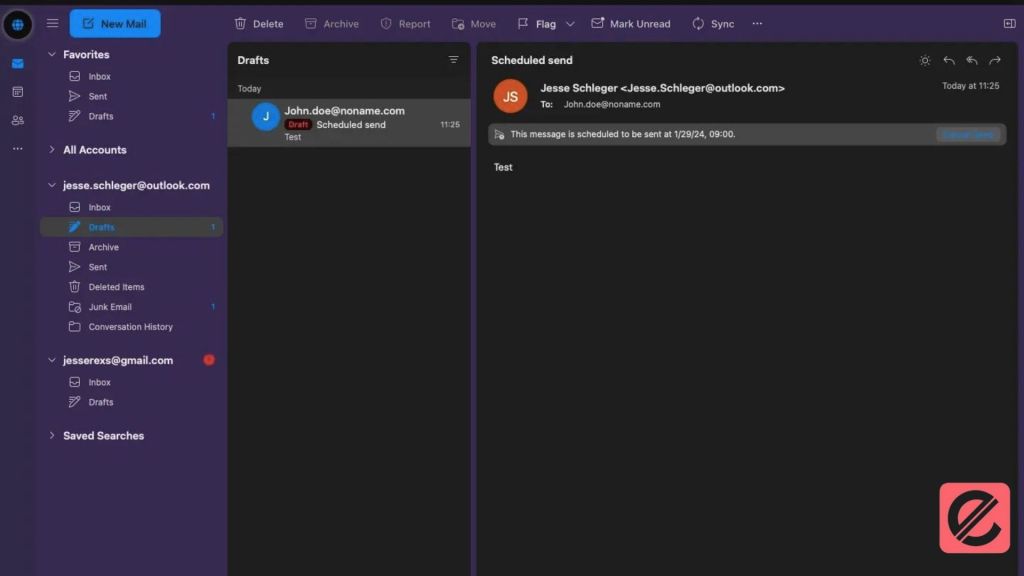
Pro Tip: In the Outlook web app, scheduled emails are stored in your Drafts folder until the delivery time arrives.
Edit or Cancel Scheduled Emails
Did you make a mistake or need to adjust the timing of your scheduled email? No problem! Both desktop and web versions of Outlook allow you to edit or cancel scheduled emails before they are sent.
- Desktop App: Locate the scheduled email in your Drafts folder. Open the email, make any necessary edits, click “Send Now” to deliver it immediately, or choose a new scheduled time.
- Web App: Access your Drafts folder and open the scheduled email. Click the three dots menu, select “Edit” to make changes, or choose “Cancel Send” to remove it from the schedule entirely.
Optimizing Your Email Scheduling in Outlook Strategy for Maximum Impact
While the basic mechanics of email scheduling in Outlook are straightforward, there are additional considerations that can elevate your strategy:
Selecting the Right Time for Delivery
When determining the best moment to send your prearranged emails, take into account these factors:
- Recipient Time Zone: To increase the likelihood of a prompt response, ensure your email arrives during the recipient’s working hours.
- Industry Norms: Research standard email-sending practices within your industry. For instance, B2B communications are delivered on weekdays, while B2C emails could well be delivered on weekends.
- Content and Purpose: Is your email time-sensitive or informational? Urgent emails warrant immediate sending, while informative content could be scheduled for a later date or time.
Craft Compelling Subject Lines
A captivating subject line is crucial for grabbing attention, especially with scheduled emails. Here are a few pointers for creating attention-grabbing topic lines:
- Keep it concise and clear: Aim for under 50 characters to ensure it appears fully in most inboxes.
- Highlight the email’s value proposition: Briefly convey what the email is about and why the recipient should open it.
- Create a sense of urgency (if applicable): Use action verbs or indicate a deadline for time-sensitive emails to encourage prompt action.
- Personalize when possible: Including the recipient’s name or mentioning a previous conversation can boost open rates.
Utilize Follow-Up Options
After sending an important email, don’t just let it sit there. Leverage Outlook’s follow-up features to ensure your message gets the attention it deserves:
- Set a Reminder: If you are still waiting to hear back from the receiver after a specific time, set a personal reminder to follow up with them.
- Request a Delivery Receipt: (Available in Outlook desktop app only) This option lets you know when the recipient opens your email, providing valuable insights into their engagement.
Integrate Email Scheduling with Your Workflow
For optimal efficiency, consider integrating email scheduling into your broader workflow. Here are a couple of ideas:
- Schedule Emails During Batch Composing Sessions: Dedicate specific times to crafting emails and schedule them for later delivery to free up your focus for other tasks throughout the day.
- Utilize Templates for Frequently Sent Emails: Create pre-written templates for common email types, allowing you to personalize and schedule them for targeted delivery quickly.

Transform Your Inbox with Email Scheduling in Outlook
By mastering the art of email scheduling in Outlook, you can significantly elevate your email communication. This practical solution can guarantee prompt delivery, optimize productivity, and provide a professional image.
Ready to explore additional strategies for optimizing your digital marketing efforts? Creative digital marketing firm Elatre provides a range of services to assist companies in reaching their marketing objectives. From crafting compelling email campaigns to developing data-driven strategies, Elatre can empower you to connect with your audience and drive results. Reach out to Elatre today to learn more about how they can help your business thrive in the digital age.